
Canva AI Video Generator 2026: Review
Canva is used by over 170 million people worldwide. So when Canva added AI video features, millions of users tried AI video generation for the first time through a platform they already knew.
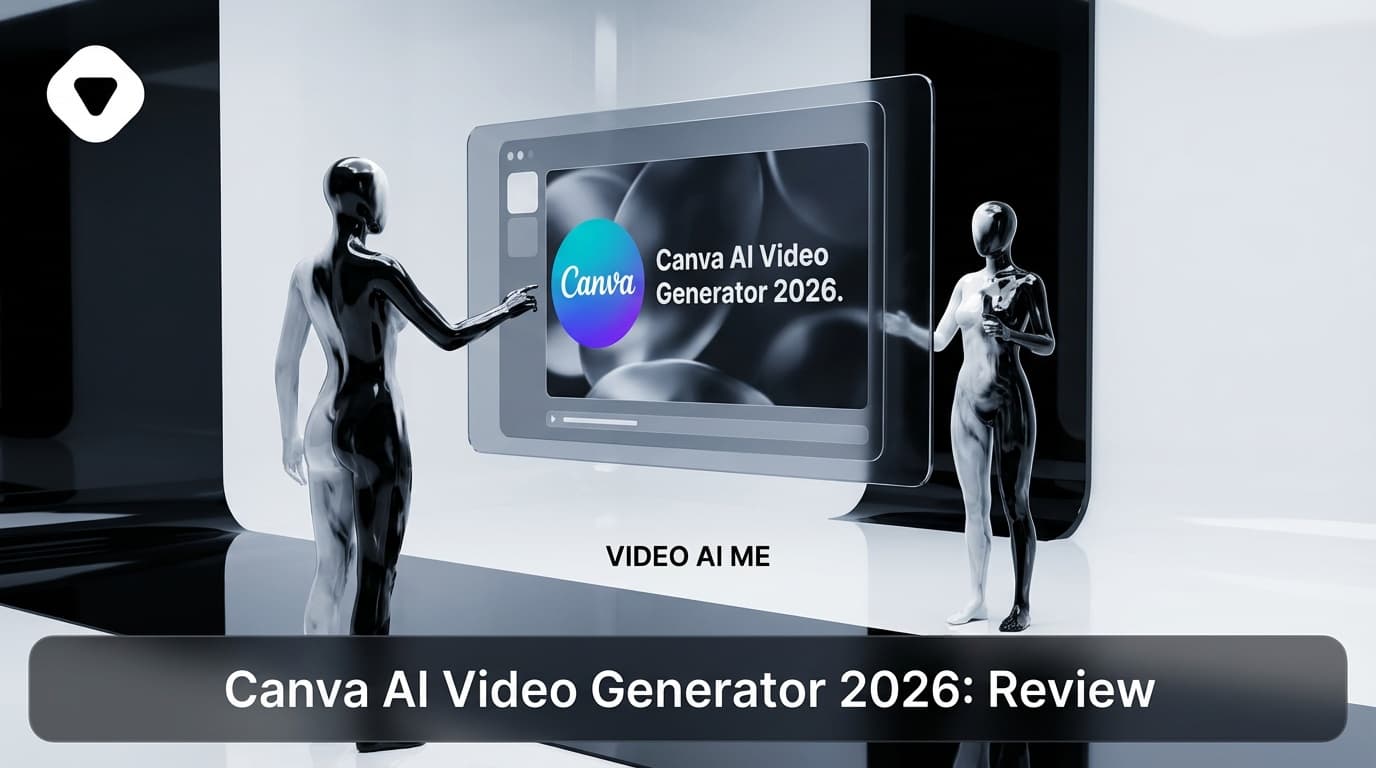
Canva is used by over 170 million people worldwide. So when Canva added AI video features, millions of users tried AI video generation for the first time through a platform they already knew.
But is Canva the best tool for AI video? Or is it a good enough feature inside a platform you already use for other things?
We tested Canva's AI video capabilities against dedicated tools to give you an honest answer.
What Canva AI Video Actually Offers
Canva's video features fall into two categories: traditional video editing and AI-assisted creation.
Traditional video features (available on free plan)
- Drag-and-drop video editor
- Templates for social media, presentations, ads
- Stock video library (limited on free)
- Text animations and basic transitions
- Music library
- Export in multiple formats and aspect ratios
AI-powered features
- Magic Design for Video: Describe what you want, and Canva suggests templates and layouts.
- Text-to-video clips: Generate short AI video clips from text prompts (limited on free, expanded on Pro).
- Magic Resize: Automatically adapt videos to different platform formats.
- Background remover: AI-powered background removal for video clips.
- Beat Sync: Automatically align cuts to music beats.
- AI translations: Auto-translate and voice-over in multiple languages (Pro feature).
Free plan limits
On the free Canva plan, AI video features are restricted:
- Limited AI video generations per month
- Access to basic templates only (premium templates require Pro)
- Smaller stock media library
- No background remover
- 5GB storage
Pro plan ($12.99/month)
- Expanded AI generation limits
- All premium templates
- Full stock media library (including video)
- Background remover
- 1TB storage
- Brand kit features
Honest Assessment: Strengths and Weaknesses
What Canva does well
Familiarity. If you already use Canva for graphics, the video editor feels natural. Same interface, same design philosophy, same asset library.
Templates. Canva's template library for social media video is massive. Every platform format, every industry, every content type. For template-based video creation, Canva is hard to beat.
No watermark. Even on the free plan, Canva does not add a watermark to your video exports. This is a significant advantage.
All-in-one workflow. Design your thumbnail, create your video, and make matching social graphics all in one tool.
Where Canva falls short
AI generation quality. Canva's text-to-video generation is basic compared to dedicated platforms. The output looks like animated stock footage rather than genuine AI-generated content. Kling, Hailuo, and Runway produce significantly better AI video.
No AI avatars. Canva does not generate talking-head videos with AI avatars. For marketing content where a person speaks to camera, you need a different tool entirely.
Limited AI video duration. AI-generated clips are short and limited in quantity on the free plan.
Template dependency. Canva's approach relies heavily on templates. If your vision does not fit a template, the editor lacks the flexibility of dedicated video editors like CapCut or DaVinci Resolve.
When Canva Is the Right Choice
You already use Canva for design and want to add video to your workflow without learning a new tool.
You need template-based social media videos quickly: Instagram Stories, Facebook ads, LinkedIn posts.
You value simplicity over quality. Canva prioritizes ease of use over maximum capability. For non-designers who need "good enough" video content fast, this trade-off works.
You want no watermark on free exports. Among free tools, this is a genuine advantage.
When to Choose Alternatives
For AI-generated video content: Kling AI or Hailuo
If you want AI to generate the actual video footage (not just assemble templates), dedicated generators produce dramatically better results.
Kling AI generates unique, cinematic-quality video from text prompts. The quality gap between Kling's output and Canva's AI generation is enormous.
Hailuo AI generates good quality video with no watermark. Free, fast, and focused on what it does best.
For marketing videos with AI avatars: VideoAI.ME
If your goal is creating UGC-style marketing content where a person speaks to camera, VideoAI.ME produces what Canva cannot: complete marketing videos with realistic AI presenters.
Write your script, choose an avatar, and get a finished video. No template needed. No stock footage. No editing required. The output is ready to publish as an ad or social media post.
This is the tool for marketing teams, e-commerce brands, and agencies who need spokesperson-style video at scale.
For professional video editing: CapCut or DaVinci Resolve
If you have outgrown Canva's editing capabilities, CapCut (free, with excellent AI features) and DaVinci Resolve (free, professional-grade) offer more powerful editing.
CapCut's AI auto-captions, silence removal, and background removal are more capable than Canva's equivalents.
For team collaboration on video: Kapwing
If real-time team editing is important, Kapwing's collaborative features surpass Canva's video collaboration capabilities.
Comparison Table
| Feature | Canva Free | Canva Pro | Kling AI | VideoAI.ME | CapCut Free |
|---|---|---|---|---|---|
| AI video generation | Basic | Better | Excellent | N/A (avatars) | Basic |
| AI avatars | No | No | No | Yes | No |
| Templates | Huge library | Bigger | None | Marketing-focused | Large |
| Editing tools | Basic | Basic | None | Minimal | Advanced |
| Auto-captions | No | Yes | No | Included | Yes |
| Watermark | None | None | Small logo | Varies | None |
| Price | Free | $12.99/mo | Free tier | Free tier | Free |
| Best for | Quick template videos | Brand consistency | AI footage | Marketing videos | Editing |
The Smart Workflow: Use Canva and Alternatives Together
Instead of choosing one tool, use each for what it does best:
- Generate marketing videos on VideoAI.ME (AI avatar + script)
- Create matching thumbnails and social graphics on Canva (where it excels)
- Generate B-roll footage on Kling or Hailuo (AI video generation)
- Edit and combine on CapCut (AI-powered editing)
- Design complementary assets (carousel posts, stories, banners) on Canva
This workflow uses Canva for design (its strength) while using dedicated tools for video creation (Canva's weakness).
Canva Video for Different Use Cases
Social media managers
Canva works well for social media managers who need to produce quick, template-based video across multiple platforms. The ability to create a video and instantly resize it for Instagram Stories, LinkedIn, and TikTok saves time.
The limitation: social media increasingly rewards authentic, personal video over polished templates. For performance-driven social content, VideoAI.ME creates UGC-style videos that feel personal and drive higher engagement than template-based designs.
E-commerce brands
For product announcement videos, sale promotions, and brand campaigns, Canva's templates are effective. You can maintain brand consistency across all visual content (images, videos, ads) in one tool.
For product testimonials and review-style content, Canva cannot generate talking-head video. Use VideoAI.ME for AI avatar product reviews, then design complementary assets (thumbnails, carousel posts) in Canva.
Course creators and educators
Canva's presentation-to-video feature is useful for educational content. Create your slides, add animations, record a voiceover, and export as video. For talking-head course content, combine Canva for visuals with an AI avatar platform for the presenter.
Small business owners
This is Canva's sweet spot. Small business owners who are not video professionals can create professional-looking video content using templates, without learning complex software. The free plan with no watermark removes the cost barrier entirely.
Frequently Asked Questions
Is Canva's AI video generator free?
Canva offers limited AI video features on the free plan. The Pro plan ($12.99/month) unlocks expanded AI features. The AI video generation quality, however, is below dedicated platforms regardless of plan.
Can Canva replace dedicated AI video tools?
For template-based social media videos: yes, Canva is sufficient. For AI-generated footage, AI avatar videos, or professional editing: no, dedicated tools perform significantly better.
Does Canva add a watermark to free videos?
No. Canva free plan exports do not include a watermark, which is a notable advantage over many competing platforms.
Is Canva Pro worth it for video?
If you already use Canva Pro for design, the video features are a useful addition at no extra cost. If video is your primary need, $12.99/month is better spent on dedicated video tools.
Frequently Asked Questions
Share
AI Summary

Paul Grisel
Paul Grisel is the founder of VIDEOAI.ME, dedicated to empowering creators and entrepreneurs with innovative AI-powered video solutions.
@grsl_frReady to Create Professional AI Videos?
Join thousands of entrepreneurs and creators who use VIDEO AI ME to produce stunning videos in minutes, not hours.
- Create professional videos in under 5 minutes
- No video skills experience required, No camera needed
- Hyper-realistic actors that look and sound like real people
Get your first video in minutes
Related Articles
What Is MiniMax H3? The Video Model Explained
MiniMax H3 is a multimodal video model that turns a written brief into a short clip with synchronised sound. Here is what it does, what it does not, and who it suits.
MiniMax H3 vs Veo 3: An Honest Comparison
Veo 3 is Google's video model and it is not in the VIDEO AI ME picker. Here is how it compares to MiniMax H3 on the things that decide ad creative.
MiniMax H3 vs Sora 2: Drafting Against Polish
Sora 2 renders at higher resolution and longer. MiniMax H3 gets you many more attempts. Which one belongs in your workflow depends on the job, not the benchmark.