
Best Free AI Video Enhancer and Upscaler 2026
Your video looks good on your phone. Then you see it on a larger screen, and the quality falls apart. Or you have footage from an older camera that does not meet modern resolution standards. Or you generated an AI video at 720p and need it at 1080p.
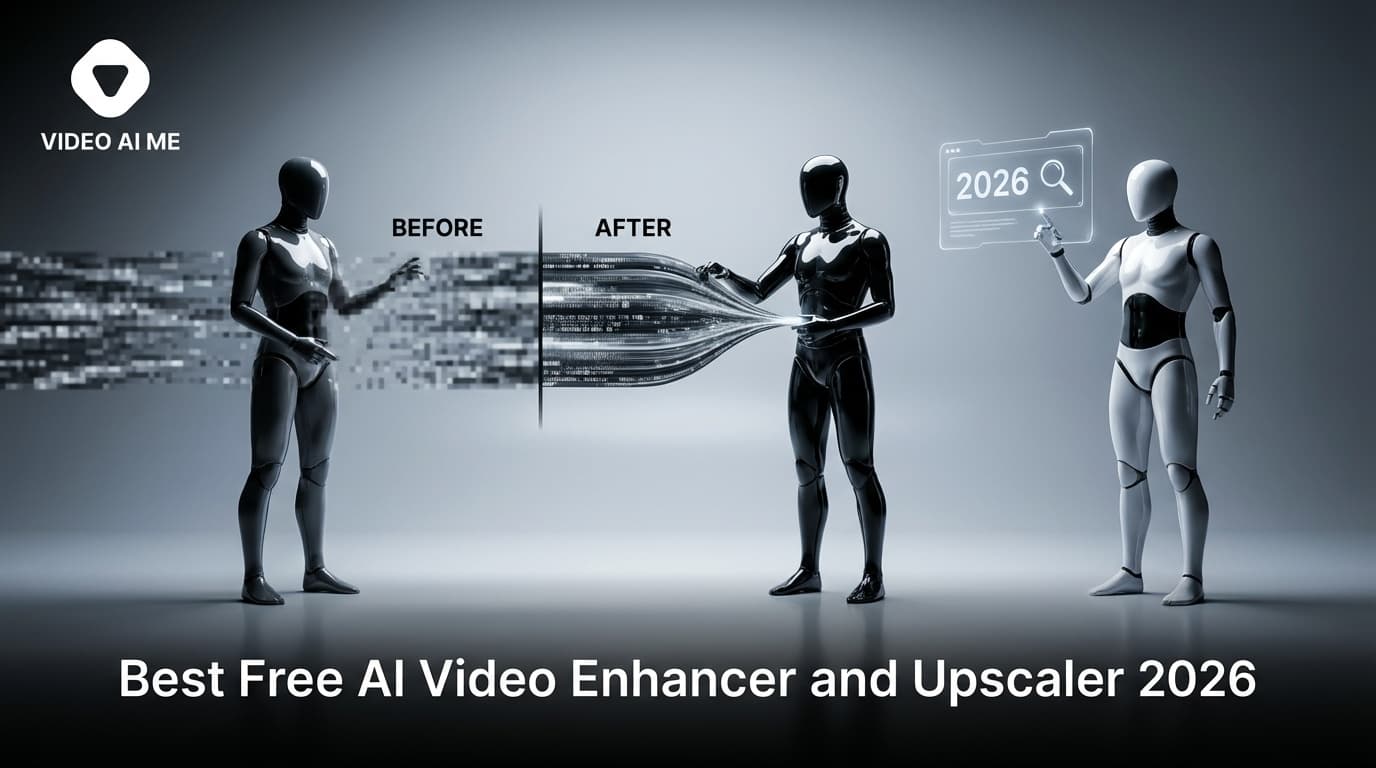
Your video looks good on your phone. Then you see it on a larger screen, and the quality falls apart. Or you have footage from an older camera that does not meet modern resolution standards. Or you generated an AI video at 720p and need it at 1080p.
AI video enhancers and upscalers solve these problems. They increase resolution, reduce noise, sharpen details, and improve overall visual quality using neural networks trained specifically for video restoration.
We tested eight tools to find which ones deliver real improvement for free.
What AI Video Enhancement Actually Does
AI video enhancement is not simple upscaling (stretching pixels to fill a larger frame). Neural networks analyze each frame, understand what the content depicts, and intelligently add detail that was not in the original.
Resolution upscaling: Increase video resolution (480p to 1080p, 720p to 4K) with AI-generated detail rather than blurry interpolation.
Noise reduction: Remove grain, compression artifacts, and visual noise while preserving real detail.
Sharpening: Enhance edges and fine detail without creating artificial halos or ringing.
Color correction: Improve color balance, exposure, and dynamic range automatically.
Frame interpolation: Generate intermediate frames to increase frame rate (24fps to 60fps) for smoother motion.
Stabilization: Reduce camera shake and smooth handheld footage.
The 8 Best AI Video Enhancers Tested
1. Topaz Video AI: Best Overall Quality
Free tier: Free trial with watermark. No permanent free plan. Pricing: $299 one-time purchase. Watermark: Yes, on trial exports. Processing: Local (runs on your GPU).
Topaz Video AI remains the gold standard for video enhancement. The quality improvement, particularly on older or low-resolution footage, is consistently impressive.
Strengths: The best AI upscaling quality available. Multiple enhancement models optimized for different content types (faces, landscapes, animation). Batch processing. Local processing means no upload limits.
Weaknesses: Not free. The $299 price tag is significant for casual users. Requires a capable GPU (4GB+ VRAM minimum, 8GB+ recommended). Processing is slow on lower-end hardware.
Best for: Professionals who need the absolute best quality and process enough video to justify the investment.
2. CapCut (AI Enhance Feature): Best Free Option
Free tier: Available with basic enhancement features. Pricing: Free (Pro features on CapCut Pro subscription). Watermark: No watermark on enhanced exports. Processing: Cloud-based.
CapCut includes AI video enhancement as part of its free editing suite. The "Enhance" feature improves sharpness, reduces noise, and upscales resolution with one click.
Strengths: Genuinely free. No watermark. Integrated into a full editing suite. Works on mobile and desktop. Cloud processing means no GPU requirements.
Weaknesses: Enhancement quality is good but below Topaz. Limited control over enhancement parameters. The improvement is noticeable but not dramatic.
Best for: Casual creators who want quick, free enhancement without learning a separate tool.
3. HitPaw Video Enhancer: Best Watermark-Free Trial
Free tier: Trial with limited exports. Pricing: From $19.99/month. Watermark: No watermark on trial exports (limited quantity). Processing: Local GPU.
HitPaw offers a trial that exports without watermark, which is unusual for this category. The quality is very good, approaching Topaz for many content types.
Strengths: Watermark-free trial exports. Multiple AI models (general, face, animation, colorize). Intuitive interface. Good quality.
Weaknesses: Trial limits are strict. Subscription pricing adds up. Requires local GPU.
Best for: Users who need to enhance a small number of videos and want to evaluate without watermark.
4. Neural.love Video Enhancer: Best Browser-Based
Free tier: Limited free processing. Pricing: Credits-based, from $15 for 300 credits. Watermark: No watermark. Processing: Cloud-based.
Neural.love runs entirely in your browser. Upload a video, select enhancement options, and download the improved version.
Strengths: No software to install. Works on any device with a browser. No GPU required. Good quality for a browser tool.
Weaknesses: Upload limits on free tier. Processing speed depends on server load. Quality below desktop applications.
Best for: Quick, occasional enhancement without installing software.
5. Waifu2x-Video: Best for Animation
Free tier: Open source, completely free. Pricing: Free. Watermark: None. Processing: Local GPU.
Originally designed for upscaling anime and manga art, Waifu2x's video variant excels at enhancing animated content. The model understands clean lines, flat colors, and the visual language of animation.
Strengths: Free and open source. Excellent at upscaling animated content. No watermark. Active community.
Weaknesses: Specialized for animation. Results on live-action footage are mediocre. Requires technical setup. Command-line interface.
Best for: Enhancing anime, cartoons, and animated content.
6. RIFE (Real-Time Intermediate Flow Estimation): Best for Frame Rate
Free tier: Open source, completely free. Pricing: Free. Watermark: None. Processing: Local GPU.
RIFE specializes in frame interpolation. Convert 24fps video to 60fps or even 120fps. The AI generates convincing intermediate frames, making motion significantly smoother.
Strengths: Free. The best frame interpolation quality available. Makes low-fps content look dramatically smoother.
Weaknesses: Frame rate only. Does not improve resolution or reduce noise. Requires technical knowledge. Can produce artifacts on fast motion or scene changes.
Best for: Smoothing video motion. Particularly useful for converting AI-generated video (often 8-12fps) to playable frame rates.
7. Video2X: Best Open-Source All-Rounder
Free tier: Open source, completely free. Pricing: Free. Watermark: None. Processing: Local GPU.
Video2X combines multiple AI upscaling backends (waifu2x, Real-ESRGAN, SRMD) into a single tool with a graphical interface.
Strengths: Free. Multiple AI models to choose from. GUI available. Good community documentation.
Weaknesses: Setup requires some technical comfort. Quality varies by model selection. Processing is slow on consumer hardware.
Best for: Technical users who want free, high-quality upscaling with flexibility.
8. Remini (Video Mode): Best Mobile Enhancer
Free tier: Limited daily enhancements. Pricing: From $9.99/month. Watermark: No watermark on free enhancements. Processing: Cloud-based.
Remini started as a photo enhancer and expanded to video. The mobile app makes enhancement accessible to anyone with a phone.
Strengths: Mobile-first. Very easy to use. Good face enhancement. No watermark on free enhancements.
Weaknesses: Limited to short videos on free tier. Best at faces, less effective on other content. Mobile-only (no desktop version).
Best for: Enhancing face-focused video (selfies, talking-head content) on mobile.
Comparison Table
| Tool | Free | Watermark | Resolution Up | Noise Reduction | Frame Rate | Best Content Type |
|---|---|---|---|---|---|---|
| Topaz Video AI | Trial | Yes (trial) | 4x | Yes | Yes | All |
| CapCut | Yes | No | 2x | Yes | No | All (basic) |
| HitPaw | Trial | No (trial) | 4x | Yes | No | All |
| Neural.love | Limited | No | 2x | Yes | No | All (basic) |
| Waifu2x-Video | Yes | No | 4x | Limited | No | Animation |
| RIFE | Yes | No | No | No | Yes | All (frame rate) |
| Video2X | Yes | No | 4x | Limited | No | All |
| Remini | Limited | No | 2x | Yes | No | Faces |
When to Enhance vs. When to Regenerate
If you are working with AI-generated video, sometimes the better approach is to regenerate at higher quality rather than enhance a low-quality output.
Enhance when:
- You have footage from a real camera that cannot be reshot
- The AI generation used all your free credits and you cannot regenerate
- You need higher frame rate (RIFE is the only option here)
- The content is good but the resolution is insufficient
Regenerate when:
- Free credits are available on the generation platform
- The platform offers higher resolution on free tier (Kling offers 1080p)
- The enhancement results are not satisfactory
- You can modify the prompt to improve quality at the source
Enhancement workflow for AI-generated marketing videos
For marketing teams using VideoAI.ME or similar platforms:
- Generate your video at the platform's standard resolution
- If the resolution is not sufficient for your distribution channel, run it through CapCut's free enhancer
- For frame rate smoothing (if the AI video feels slightly choppy), use RIFE
- Export the enhanced version for publishing
This workflow costs nothing and noticeably improves the final quality.
Frequently Asked Questions
Can AI upscaling make 480p look like 4K?
It can make it look significantly better than 480p, but it will not match native 4K footage. Expect a dramatic improvement that falls somewhere between the original low resolution and true high resolution. Going from 480p to 1080p produces the most noticeable improvement. Going from 1080p to 4K shows more subtle gains.
Which free enhancer produces the best quality?
For live-action video: CapCut for ease and accessibility, Video2X with Real-ESRGAN for maximum quality (requires setup). For animation: Waifu2x-Video. For frame rate: RIFE.
Does enhancement work on AI-generated video?
Yes, and it can be particularly effective. AI-generated video often has consistent quality characteristics that enhancement models handle well. Upscaling a 720p Hailuo export to 1080p using CapCut produces a visible improvement.
How long does enhancement take?
CapCut (cloud): 2 to 5 minutes for a 30-second video. Topaz (local, good GPU): 5 to 15 minutes. Open-source tools (local, mid-range GPU): 10 to 30 minutes. Processing time scales linearly with video duration.
Can I enhance video on my phone?
CapCut and Remini both offer mobile video enhancement. Processing happens in the cloud, so phone performance does not matter.
Frequently Asked Questions
Share
AI Summary

Paul Grisel
Paul Grisel is the founder of VIDEOAI.ME, dedicated to empowering creators and entrepreneurs with innovative AI-powered video solutions.
@grsl_frReady to Create Professional AI Videos?
Join thousands of entrepreneurs and creators who use VIDEO AI ME to produce stunning videos in minutes, not hours.
- Create professional videos in under 5 minutes
- No video skills experience required, No camera needed
- Hyper-realistic actors that look and sound like real people
Get your first video in minutes
Related Articles
How to Run MiniMax H3 Without a GPU
MiniMax H3 has public weights, so people try to self host it. Here is what that actually costs in hardware and time, and the browser route if you just want the clips.
Writing Sound and Dialogue in MiniMax H3 Prompts
Audio is generated with the picture, so it is yours to direct. How to write dialogue, ambience and silence, and how much speech actually fits in a short clip.
MiniMax H3 Prompt Guide: How to Write a Shot
The five part structure that gets usable clips out of MiniMax H3, why keyword lists fail, and how to write the sound as deliberately as the picture.