
Seedance 2.0 Best Settings: The Configuration That Works
Seedance 2.0 best settings: 720p, 9:16 for short-form social, locked aspect ratio, iPhone aesthetic anchor. Here is the full configuration we use for production work.
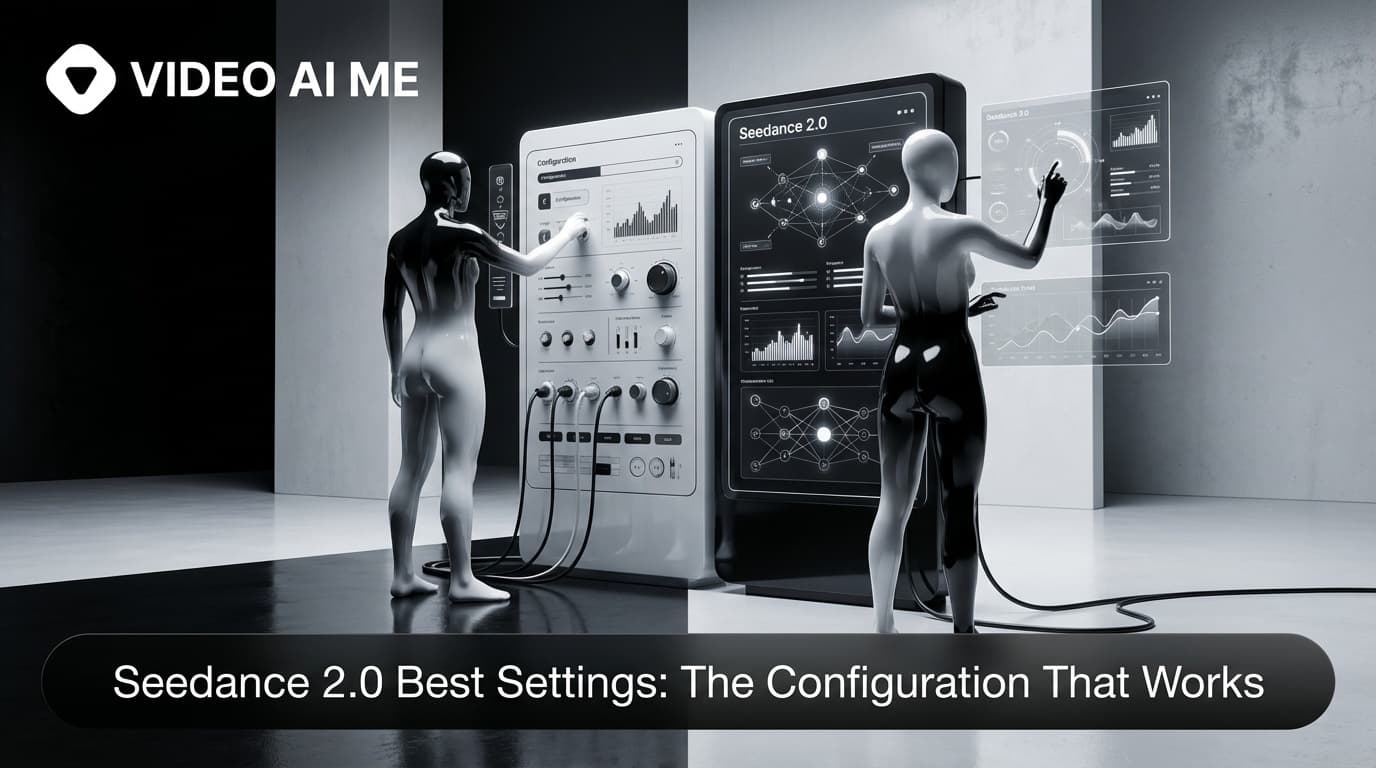
The settings that shipped a thousand clips
Every new tool comes with a settings panel and a thousand ways to configure it. Most of those configurations are wrong. After more than 1,200 Seedance 2.0 generations at VIDEO AI ME, you start to see which settings actually matter and which are decoration. This post is the configuration we use for production work, the one that ships the cleanest clips with the fewest wasted generations.
Nothing in this post is theoretical. Every setting we recommend is one we have tested in real ad campaigns, on real client work, against real ad performance data. If a setting is not in this post it is because we tested it and it did not matter or it made things worse.
By the end of this post you should be able to configure Seedance 2.0 for any production scenario in under 10 seconds. You will know the resolution, the aspect ratio, the duration target, the prompt anatomy, the negative cue, and the iteration discipline that gets you to a shippable clip on the first or second try. No more burning credits on settings experiments.
The best Seedance 2.0 settings for production
Seedance 2.0 best settings are 720p resolution, locked aspect ratio (9:16 for short-form, 16:9 for desktop, 1:1 for feed), 8 to 12 second duration target, the full 7-part prompt anatomy, the standard negative cue, and one-variable-at-a-time iteration. Lock these in as your production default and you ship clips on the first or second try roughly 80 percent of the time. Everything else is decoration.
Default settings exist to be safe, not to be best. The default resolution is usually the cheapest one. The default aspect ratio is usually the most generic. The default duration is usually the shortest one. None of those defaults are wrong but they are not what you want for production.
Production settings are different from testing settings. When you are testing a prompt, you generate at 480p in 9:16 with whatever duration you can get because you just want to see if the idea works. When you are shipping a final ad, you generate at 720p in the right ratio for the platform, with a deliberate duration, and a clean negative cue. The settings switch the moment you go from "is this idea any good" to "ship this clip."
The rest of this post is the production configuration. Use the testing configuration for exploration and the production configuration for shipping. If you want to try both configs back to back, start a free project on VIDEO AI ME and flip between 480p testing and 720p production on the same prompt.
Production resolution: always 720p
720p is the production default. Always. The cost difference between 480p and 720p on Seedance 2.0 is small but the quality difference is significant: better skin texture, sharper lighting transitions, cleaner motion blur, more legible facial expressions. For paid ads where every frame matters, 720p is worth the small extra credit.
480p has one use case: rapid iteration during a brainstorming session. Generate 10 prompt variations at 480p, pick the best one, regenerate that one at 720p for final delivery. This is the workflow that saves the most credits while still shipping high quality.
Production aspect ratio: lock it, never auto
Never use auto aspect ratio for production. The model picks based on prompt cues but the result varies between generations and you cannot predict whether you will get 9:16 or 16:9. For production work, always lock the ratio explicitly.
The lookup table:
- TikTok, Reels, Shorts, Snap, Stories: 9:16
- YouTube long-form, landing page hero, OTT: 16:9
- Instagram feed, LinkedIn feed, X timeline: 1:1
- Email embed, newsletter video: 16:9 or 1:1 depending on the client
Locking the ratio also locks the framing, which means the model composes the shot deliberately for the platform you are targeting.
Production duration: 8 to 12 seconds in one prompt
For a single Seedance 2.0 generation, target 8 to 12 seconds. This is the sweet spot where the model has time to develop a story (2 to 3 shots, dialogue, action) but not so long that quality drifts.
If your final ad needs to be longer than 12 seconds, chain multiple 8 to 12 second clips in the editor. Two chained clips give you a 20 second ad. Three chained clips give you a 30 second ad. This is the standard pattern for paid social ads.
For short hooks and tests, 4 to 6 seconds is fine. For maximum story per generation, push to 12 seconds with a 5 shot multi shot prompt.
Production prompt anatomy: the seven parts
The production prompt structure has seven parts and skipping any of them reduces quality.
- Aesthetic anchor ("UGC creator", "cinematic 35mm film", "shot on iPhone")
- Subject anchor (age, hair, clothing, distinguishing detail)
- Setting and location (specific environment with 3 to 5 detail anchors)
- Camera framing (wide, medium, close-up, eye level, low angle)
- Action in beats ("walks to the window, pauses, pulls the curtain")
- Dialogue or action note (spoken line in quotes if applicable)
- Negative cue line at the end
Miss any of these and the model fills in the gap with a default that may not match your vision. Include all seven and you ship clips on the first try.
Real Seedance 2.0 prompt example
This Adidas sneaker prompt has all seven parts of the production anatomy. Aesthetic anchor (UGC creator), subject anchor (energetic Black man in his twenties), setting (concrete skatepark at golden hour), framing (held close to lens, then jogs three steps), action beats (lifts, rotates, drops, slides, stomps, jogs, stops, turns), dialogue (two short lines in quotes), and the negative cue at the end.
UGC creator, energetic Black man in his twenties standing in a concrete skatepark at golden hour, holding a brand new pair of white and neon green sneakers. He lifts them close to the camera lens, rotates them slowly saying: "Bro look at these. Feel that material." He drops them on the ground, slides his foot in, stomps twice, then jogs three steps and stops. He turns back to camera: "Insane comfort." Filmed with iPhone, warm sunset backlight, slight lens flare, handheld. - No music, No logo, no text on screen.
This prompt produces a shippable ad on the first generation about 80 percent of the time. That is the bar production settings should hit.
The negative cue: one line, every time
The negative cue at the end of the prompt is non-negotiable for paid ads. Without it, the model adds default stock music, captions, watermarks, and brand logos that you do not want.
The production negative cue: "- No music, No logo, no text on screen."
That is the line. Use it verbatim at the end of every UGC ad prompt. If you need to add more ("silent, no audio" for fully silent clips, or "no faces in background" for sparse compositions) append to the same line.
Iteration discipline: change one variable at a time
When a generation is close but not perfect, do not rewrite the whole prompt. Change one variable. Swap the lens. Change one color. Simplify one action beat. Re-run.
The reason: video models are sensitive to small changes. A wholesale rewrite changes too many things at once and you cannot tell which change improved the output. One variable at a time gives you control over the iteration.
This is the discipline that separates fast Seedance 2.0 users from slow ones. The fast users iterate one knob at a time and converge in three or four generations. The slow users rewrite the prompt every time and burn ten generations chasing their tail. We have watched agency teams cut their average generations-per-final-clip from 8 to 3 simply by adopting the one-variable rule.
The full production configuration table
| Setting | Production value | Why |
|---|---|---|
| Resolution | 720p | Better texture, lighting, expression |
| Aspect ratio | Locked, not auto | Predictable composition |
| Duration target | 8 to 12 seconds | Story room without quality drift |
| Prompt anatomy | All 7 parts | Avoids default fills |
| Negative cue | "- No music, No logo, no text on screen." | Removes watermarks and stock music |
| Iteration | One variable at a time | Faster convergence |
| Multi shot | 3 to 5 shots | Sweet spot for story per clip |
| Reference image | Use for character consistency | Locks face across generations |
Memorize this table. It is the configuration we use on every paid client project. Want to lock it into your own workflow? Open VIDEO AI ME and test a prompt using these settings as your preset.
Common mistakes
- Generating final ads at 480p to save credits and shipping low quality clips
- Using auto aspect ratio in production and getting unpredictable framing
- Skipping the negative cue line and ending up with default stock music in your ad
- Rewriting the whole prompt instead of changing one variable when iterating
- Cramming 6 or 7 shots into a multi shot prompt and getting compressed quality
- Forgetting to include all 7 parts of the production prompt anatomy
A 60-second first-run checklist
Before you hit generate on a production clip, run this checklist:
- Resolution set to 720p? If no, switch.
- Aspect ratio locked explicitly? If no, pick the platform ratio.
- Duration target fits the platform (8 to 12 seconds default)? If no, adjust prompt complexity.
- All 7 prompt parts present? If no, add the missing piece.
- Negative cue at the end? If no, append it.
- Character anchor detailed (age, hair, clothing, posture)? If no, add three details.
- Dialogue lines under 16 words each? If no, trim.
Run this list once, fix anything missing, and then generate. The whole check takes about 60 seconds and saves you two or three wasted generations per brief. After a few weeks it becomes automatic and you stop thinking about it at all.
How to do this on VIDEO AI ME
On VIDEO AI ME, the production settings live in one panel next to the Seedance 2.0 prompt input. Set 720p, lock the aspect ratio, paste your prompt with all 7 parts and the negative cue, and hit generate. The platform stores your most-used settings as a preset so you can reuse them across hundreds of generations without retyping. We also include reference image upload for character consistency in the same panel. Browse the full feature list or check pricing for credit details.
The bottom line
Seedance 2.0 best settings are 720p, locked aspect ratio, 8 to 12 second duration target, full 7-part prompt anatomy, the standard negative cue, one-variable-at-a-time iteration. Lock these in as your production default and you ship clips on the first or second try every time. Try Seedance 2.0 free on VIDEO AI ME and configure your own production preset.
More Seedance 2.0 prompts to study
The four reference videos used throughout this guide (a multi shot street interview, a skatepark product UGC, an unboxing narrative with a timelapse, and a high energy gamer reaction) live as a full copyable library on Seedance 2.0 Prompt Templates: Copy Paste and Ship. Bookmark it and remix any of the four when you need a starting point.
Related Seedance 2.0 guides on VIDEO AI ME
If you want to go deeper, these guides pair well with this one:
- Seedance 2.0: Complete Guide for AI Video Creators
- Seedance 2.0 vs Seedance 1: What Actually Changed
- Seedance 2.0 Features: Everything the New ByteDance Model Can Do
- How to Use Seedance 2.0: Beginner to Advanced in One Guide
You can also browse the full VIDEO AI ME blog for more AI video tutorials, or jump straight into the product and try Seedance 2.0 free on VIDEO AI ME with no credit card.
Frequently Asked Questions
Share
AI Summary
Paul Grisel
Paul Grisel is the founder of VIDEOAI.ME, dedicated to empowering creators and entrepreneurs with innovative AI-powered video solutions.
@grsl_frReady to Create Professional AI Videos?
Join thousands of entrepreneurs and creators who use VIDEO AI ME to produce stunning videos in minutes, not hours.
- Create professional videos in under 5 minutes
- No video skills experience required, No camera needed
- Hyper-realistic actors that look and sound like real people
Get your first video in minutes
Related Articles
How to Run MiniMax H3 Without a GPU
MiniMax H3 has public weights, so people try to self host it. Here is what that actually costs in hardware and time, and the browser route if you just want the clips.
Writing Sound and Dialogue in MiniMax H3 Prompts
Audio is generated with the picture, so it is yours to direct. How to write dialogue, ambience and silence, and how much speech actually fits in a short clip.
MiniMax H3 Prompt Guide: How to Write a Shot
The five part structure that gets usable clips out of MiniMax H3, why keyword lists fail, and how to write the sound as deliberately as the picture.