
How to Use Seedance 2.5 Online (No Chinese App)
A six step walkthrough for generating Seedance 2.5 video in a browser: picking the model, writing the prompt, setting duration and resolution, attaching references, and iterating without burning credits.
If you want to know how to use Seedance 2.5 and every result points at a Chinese app you cannot sign into, this is the short version: the model is in the VIDEO AI ME editor, the interface is in English, and it runs in a browser on a normal subscription. Below is the full loop we use to get a usable ad out of it, from picking the model to the iteration pass that decides whether the clip ships.
Two things to know before you start. Audio is generated with the picture, so your prompt should describe what is heard as well as what is seen. And the mode is chosen for you by how many reference images you attach: none gives text to video, one gives image to video, and two to four gives reference to video.
How to Use Seedance 2.5 in Six Steps
The steps below take about ten minutes for a first clip and about two minutes per iteration after that. Work on a real ad concept rather than a test phrase, because you can only judge output against an intention.
Step 1: Pick Seedance 2.5 in the model picker
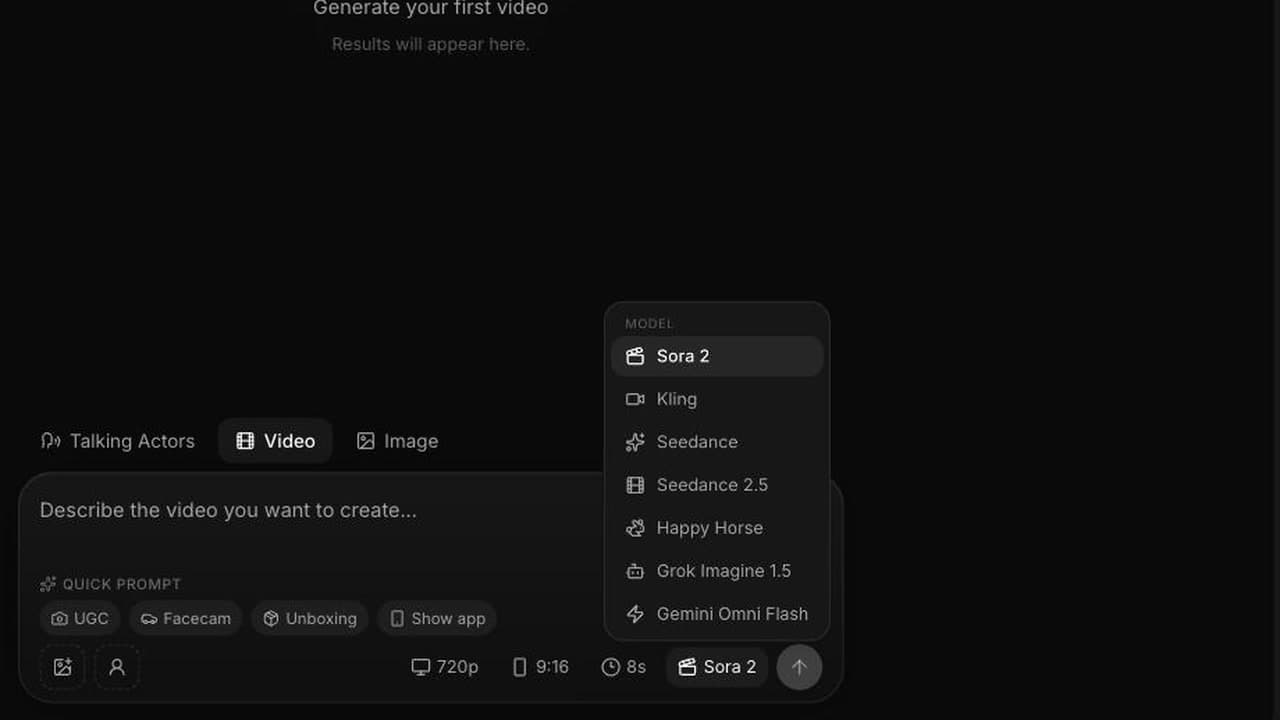
Open the /new editor and open the model dropdown. Seedance 2.5 sits in the list with Sora 2, Kling, Seedance 2.0 Fast, Happy Horse, Grok Imagine 1.5 and Gemini Omni Flash. Select it before you write anything, because the available durations and settings follow the model you chose.
If you have used Seedance 2.0 Fast, keep it in mind as the cheap exploration model. Plenty of teams draft ideas there and finish in 2.5.
Step 2: Write the prompt as one continuous shot
This is where most first attempts go wrong. Seedance 2.5 reasons about the whole shot at once, so a comma separated pile of adjectives gives you a pile of adjectives. Write the shot the way you would describe it to a director of photography: what the camera is doing, who is in frame, what happens first, what happens next, how it is graded.
A working example, the opening shot of a 15 second spot we use as a reference build:
Aerial drone orbit, 45 degree down angle, slowly descending, counter clockwise. A woman in a flowing crimson silk gown walks barefoot on the surface of a mirror calm ocean at golden hour, toward a low molten sun. Slow concentric ripples radiate from each step. Slow motion, anamorphic lens flare, teal and orange cinematic grade, rich blacks, gentle halation. Epic luxury commercial style, 16:9, photoreal.
Note the four ingredients: camera language, subject and action, grade language, and a style anchor. Then add audio, because it is being generated whether you specify it or not:
- Dialogue goes in quotation marks: she says "They spent two million dollars on this ad."
- Ambient sound gets named: distant surf, room tone, a quiet office at night.
- Absence gets named too. If you do not want music, write that there is no music, otherwise you may get a bed you have to work around.
For 20 and 30 second generations, give the clip an arc rather than one situation: setup, development, a turn, a resolution, with the transitions named. The Seedance 2.5 prompt guide goes deeper on shot structure and on the phrasing that reliably survives a render.
Step 3: Set duration, resolution and aspect ratio
Three controls, and each one has a default that is right most of the time.
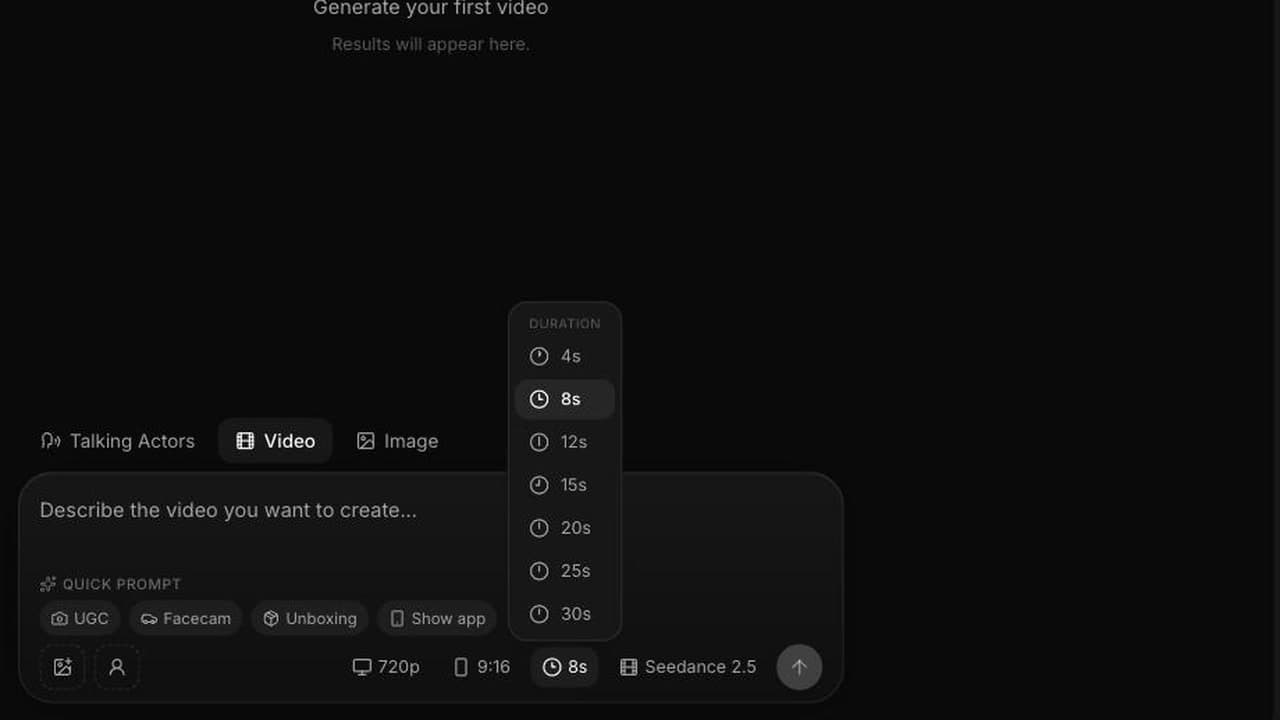
Duration. Choose from 4, 8, 12, 15, 20, 25 and 30 seconds. Thirty is produced in a single pass, so a long clip is one continuous scene rather than an edit. Start at 8 seconds while you are still deciding whether the idea works.
Resolution. 480p or 720p. Use 480p for every exploratory run and 720p only for the version you intend to run as an ad. At 23 credits per second versus 48, that discipline roughly halves the cost of finding a winner.
Aspect ratio. auto, 21:9, 16:9, 4:3, 1:1, 3:4 and 9:16. Pick the placement you are actually cutting for, normally 9:16 for feed and stories placements on TikTok and Meta. One exception: in image to video mode the output follows the input image, so the aspect picker does not apply.
Step 4: Attach reference images if you need them
Skip this step for a pure imagination shot. Use it when a specific face, product or style has to survive the render.
- One image puts you in image to video. That image becomes the start frame and the clip animates out of it. You can also supply an optional end frame, in which case the clip transitions from the first to the second.
- Two to four images puts you in reference to video, where subjects, product and style are carried across the shot.
In reference to video, bind every image explicitly in the prompt text: keep the creator from @Image1, the bottle from @Image2, the kitchen lighting from @Image3. If you write "use the references" and nothing else, the model blends them and you get a person who is nobody in particular holding a product that is not quite yours. Our walkthrough on Seedance 2.5 reference images has the binding patterns that hold up across a batch of variants.
Reference to video costs the same per second as the other modes, so consistency is not a paid upgrade.
Step 5: Generate, then watch it with sound on
Press generate and wait. When the clip returns, review it in this order, because reviewing out of order wastes iterations:
- Does the shot read in the first second? If the frame is confusing at 0.5 seconds it will lose the scroll no matter how good second six is.
- Is the audio right? Listen for the dialogue landing, unwanted music, and whether the ambient bed matches the location.
- Is the subject intact? Face, hands, product label, text on packaging.
- Is the pacing right for the duration you chose? A 15 second idea crammed into 8 seconds reads as rushed, and an 8 second idea stretched to 15 reads as dead air.
Only after all four do you look at grade and polish, which is the cheapest thing to fix.
Step 6: Iterate at 480p, then run the final at 720p
Change one variable per run. If you rewrite the camera move, the dialogue and the grade at the same time and the result improves, you have learned nothing you can reuse.
A typical loop that ends in a shippable asset:
- Run 1, 8s, 480p: does the concept hold? 184 credits.
- Run 2, 8s, 480p: fix the weakest of the four review points. 184 credits.
- Run 3, 15s, 480p: extend to the full idea with the arc written out. 345 credits.
- Final, 15s, 720p: the version you actually run. 720 credits.
That is 1,433 credits for a finished 15 second spot with three learning passes behind it, or about $14.33 of plan credit. Compare that against what a single reshoot costs you and the resolution discipline pays for itself immediately.
How to Use Seedance 2.5 Without Wasting Credits
Four habits, in order of how much they save:
Never explore at 720p. The single largest source of wasted credit is rendering a first draft at delivery quality. 480p tells you everything about composition, pacing and dialogue.
Write the audio before you write the grade. Spoken lines change timing, and timing changes how long the clip needs to be. Getting the line right at 8 seconds before you commit to 20 avoids re-rendering the long version twice.
Keep a prompt log. Save the exact text of every run next to its result. Reusable prompts are the actual asset you are building, not the individual clips.
Match duration to plan. A 30 second clip at 720p costs 1,440 credits, which exceeds the entire Starter allowance of 1,400 per month, so 30 second work at 720p starts on Pro. Starter handles 30 second clips at 480p at 690 credits each. The Seedance 2.5 pricing breakdown has the full per plan math, and the pricing page has current plan details. Video generation requires an active subscription.
If you landed here because the model appeared to be locked inside apps you cannot register for, the companion post on using Seedance 2.5 without Jimeng or Doubao explains that situation in detail. ByteDance documents the model itself on the ByteDance Seed site.
Frequently Asked Questions
How do I use Seedance 2.5 without a Chinese phone number?
Open the /new editor on videoai.me, choose Seedance 2.5 from the model dropdown, and generate. The interface is in English and runs in a standard browser on an active subscription, so no Chinese phone number, app store account or translated interface is involved.
What settings should I use for my first Seedance 2.5 generation?
Start at 8 seconds, 480p, and the aspect ratio of the placement you are cutting for, usually 9:16 for feed and stories. That run costs 184 credits and tells you whether the concept holds. Re-render the version you like at 720p once the prompt is settled.
How long can a Seedance 2.5 video be?
The duration menu offers 4, 8, 12, 15, 20, 25 and 30 seconds. Thirty seconds is generated in a single pass rather than stitched from shorter clips, so anything beyond about 12 seconds should be written with a story arc instead of one static idea.
Do I need to add a voiceover after generating?
No. Audio is generated with the picture and included in the price, including sound effects, ambient sound and lip synced speech. Write the spoken line inside quotation marks in your prompt and the model performs it. There is no audio toggle and no audio surcharge.
How do I keep the same person or product across several clips?
Attach 2 to 4 reference images, which switches the generation into reference to video mode, then bind each image explicitly in the prompt using @Image1 through @Image4. Vague references get blended, so name what each image is supplying.
Why does my Seedance 2.5 clip ignore part of the prompt?
Usually the prompt is a pile of keywords rather than a described shot. The model reasons about the whole clip at once, so write one continuous description with a beginning, a middle and an end, and change one variable per re-run so you can tell what caused the change.
Frequently Asked Questions
Share
AI Summary
Paul Grisel
Paul Grisel is the founder of VIDEOAI.ME, dedicated to empowering creators and entrepreneurs with innovative AI-powered video solutions.
@grsl_frReady to Create Professional AI Videos?
Join thousands of entrepreneurs and creators who use VIDEO AI ME to produce stunning videos in minutes, not hours.
- Create professional videos in under 5 minutes
- No video skills experience required, No camera needed
- Hyper-realistic actors that look and sound like real people
Get your first video in minutes
Related Articles
FLUX 3 Max Audio: Sound and Dialogue Prompt Guide
FLUX 3 Max generates sound on every clip. How to write dialogue it will speak, direct ambience and effects, decide on music, and replace the track when you need to.
FLUX 3 Max Aspect Ratios and Durations Explained
Every FLUX 3 Max aspect ratio and clip length on VIDEO AI ME, how auto behaves in each mode, which placement wants which shape, and what each duration costs.
FLUX 3 Max 1080p vs 720p: When 1080p Is Worth It
FLUX 3 Max costs 17 credits per second at 720p and 29 at 1080p. When the higher tier earns its rate, when 720p is enough, and how to test cheap and deliver sharp.